On this page
Weak Wi-Fi is rarely a sign that you need a faster internet plan. More often the signal is struggling to reach the far corners of the home, blocked by walls or weakened by distance from the router. Most of the fixes cost nothing and take minutes. This guide covers router placement, how the two Wi-Fi bands differ, why neighbours can slow you down, and when it makes sense to add a mesh system or range extender.
Placement does most of the work
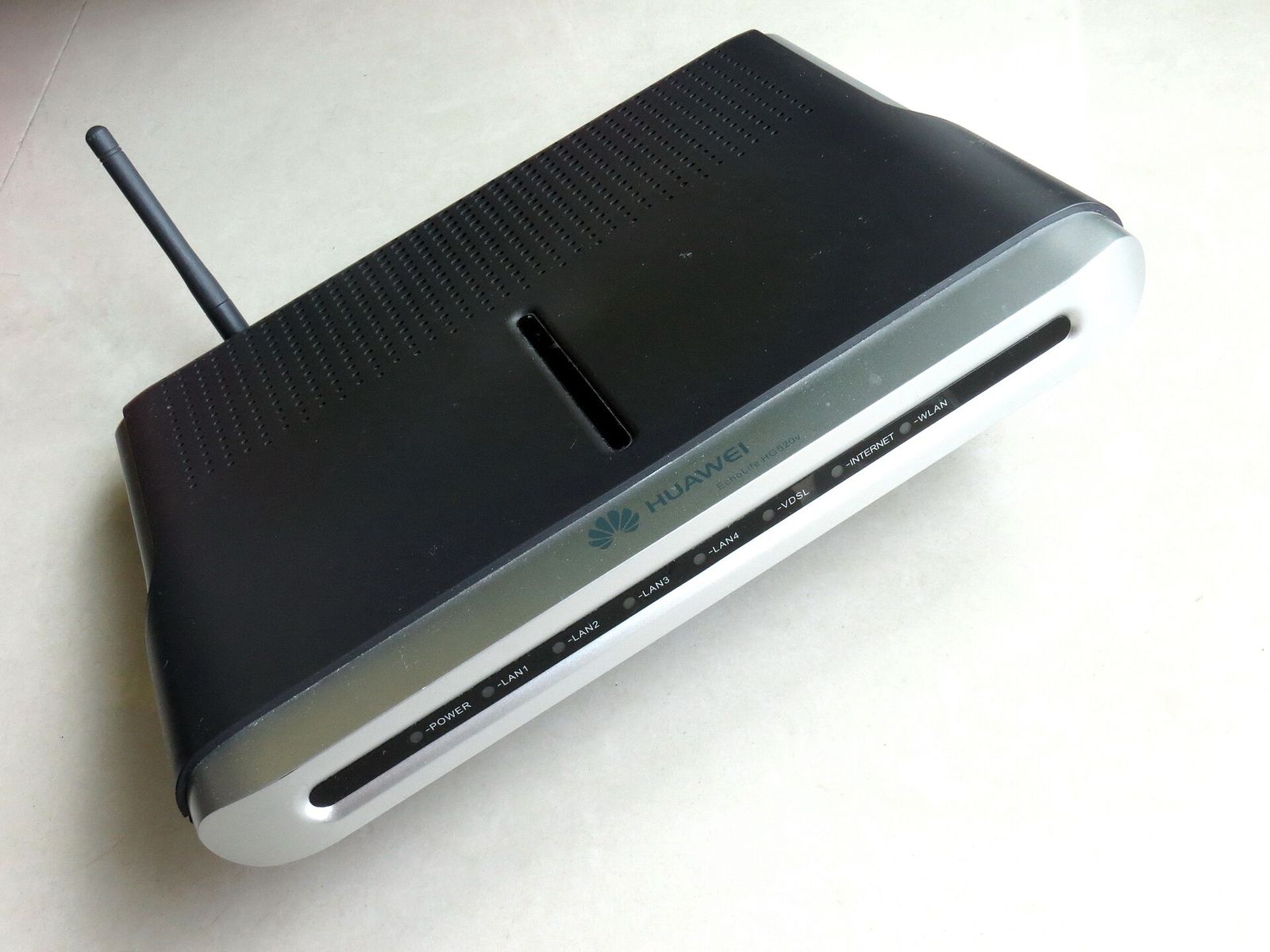
A router sends its signal out in roughly a sphere, fading as it goes. The biggest improvement for many homes is moving the router out of a corner or cupboard and into the open. Put it as close to the centre of the space you use as the cabling allows, and raise it off the floor.
Some materials weaken Wi-Fi far more than others. Thick walls, metal, mirrors, large appliances and water all absorb a signal, so a router tucked behind a television or next to a refrigerator is fighting its surroundings. Keep it in the open and point any external antennas upward unless the manual says otherwise.
The two bands: range versus speed
Most routers broadcast on two frequency bands at once, 2.4GHz and 5GHz, and knowing the difference explains why coverage varies. The 2.4GHz band travels further and passes through walls more easily, but it is slower and more crowded. The 5GHz band is faster but fades over shorter distances. Neither is better overall.
| Band | Strength | Trade-off |
|---|---|---|
| 2.4GHz | Longer range, better through walls | Slower and shares space with many other devices |
| 5GHz | Faster speeds up close | Shorter range and blocked more by walls and floors |
Many routers let both bands share one network name and hand each device to whichever suits it, which is usually easiest. If your router splits them into separate names, use 5GHz near the router and 2.4GHz further away.
Channels and interference
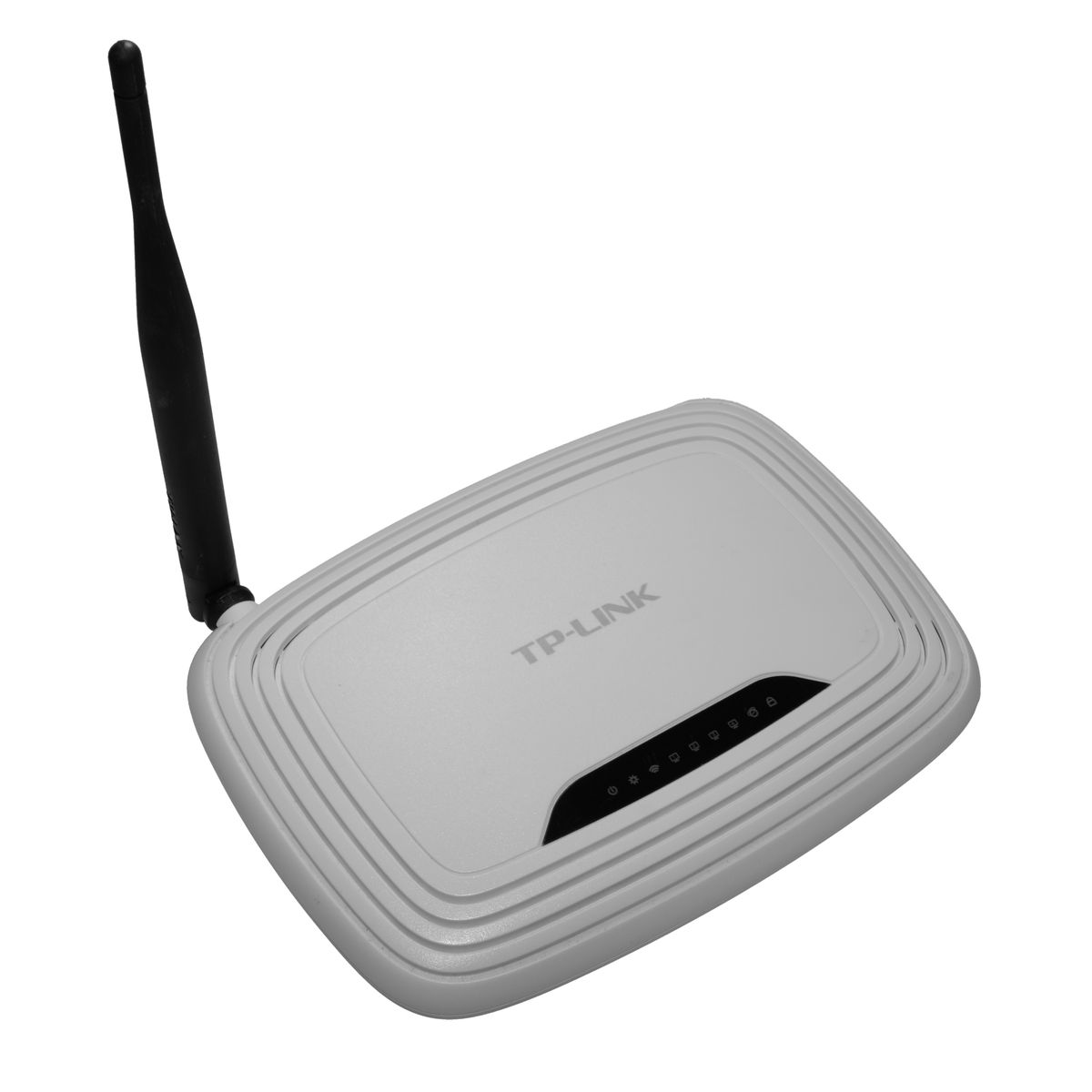
Each band is divided into channels, like lanes on a road. In a block of flats, many routers may crowd onto the same channel and slow each other down. The 2.4GHz band is especially prone to this because it has few non-overlapping channels and is shared by items such as cordless phones and microwaves.
Mesh systems versus range extenders
When good placement still leaves a dead spot, you have two main ways to extend coverage. A range extender is a single unit that catches the existing signal and rebroadcasts it into one more area. It is cheaper and quick to add, but it often halves speed in the extended zone, and it usually creates a separate network you may have to switch to by hand.
A mesh system replaces this patchwork with a set of matched units that act as one network. Your devices move between the units automatically, and the units pass traffic between themselves efficiently. A mesh costs more and replaces the router rather than bolting onto it, but it gives smoother coverage across a whole home.
- Choose a range extender for a single stubborn spot on a tight budget, accepting slower speed there.
- Choose a mesh system for a larger home or several dead zones where smooth roaming matters.
- With either, run a network cable between units where you can, known as wired backhaul.
Wired backhaul solves the main weakness of both approaches. A network cable from the router to an extender or mesh unit carries the traffic between them instead of the air, freeing the wireless radios to serve your devices and giving the most reliable speed at the far node.
Work through it in order
Move the router into the open
Place it centrally, raised off the floor, away from metal, appliances and thick walls. Re-test the weak areas before spending anything.
Check how your bands are set up
Confirm both bands are on. Use 5GHz for speed near the router and let 2.4GHz handle the far reaches.
Rule out interference
Restart the router so it can pick a clearer channel, and notice whether slow spots line up with busy evening hours.
Add hardware only if a gap remains
Pick an extender for one spot or a mesh for whole-home coverage, place it halfway to the dead zone, and wire it to the router if you can.
Start with the free changes and stop as soon as the problem is solved. For many homes, moving the router and sorting out the bands is enough. When gaps remain, match the fix to the home: an extender for one awkward corner, a mesh for a house that needs even coverage.
Photo credits
- Photo: Mk2010 / Wikimedia Commons, CC BY-SA 3.0
- Photo: Hayden Schiff / Wikimedia Commons, CC BY 4.0
Written and edited by EasyGuides Editors. See our editorial standards.