
On this page
Most people carry years of photos on a single phone and assume they are safe. A phone can be dropped, soaked, stolen or simply stop turning on, and the photos go with it. A backup is just a second copy kept somewhere else, so losing the phone does not mean losing the pictures. This guide sets up an automatic cloud backup, adds a local copy for the photos you cannot replace, and shows how to confirm that a backup will actually give your photos back when you need them.
The 3-2-1 rule, in plain terms
The habit worth building is called 3-2-1. Keep three copies of anything you care about, on two kinds of storage, with one copy kept away from home. The three copies include the originals on your phone, so in practice you are adding two more. A typical setup covers this without much effort: your phone holds copy one, an automatic cloud service holds copy two and counts as offsite, and a local copy on a computer or drive holds copy three. The offsite copy protects you from a fire or theft that takes everything in one room at once.
Set up automatic cloud backup first
Automatic cloud backup saves most people because it needs no memory and no discipline. Once switched on, new photos upload quietly in the background whenever the phone is on Wi-Fi. If the phone disappears, you sign in to the same account on any device and your photos are there. Both major phone platforms include a photo service that does this, and independent services work the same way.
Two settings decide whether the backup is complete. First, whether backup is actually turned on, which is not always the default. Second, whether it uploads full-resolution photos or shrinks them to save space. For photos you want to keep for years, choose the full-quality option if your plan allows it. Free tiers are usually small, so check your available space before relying on it.
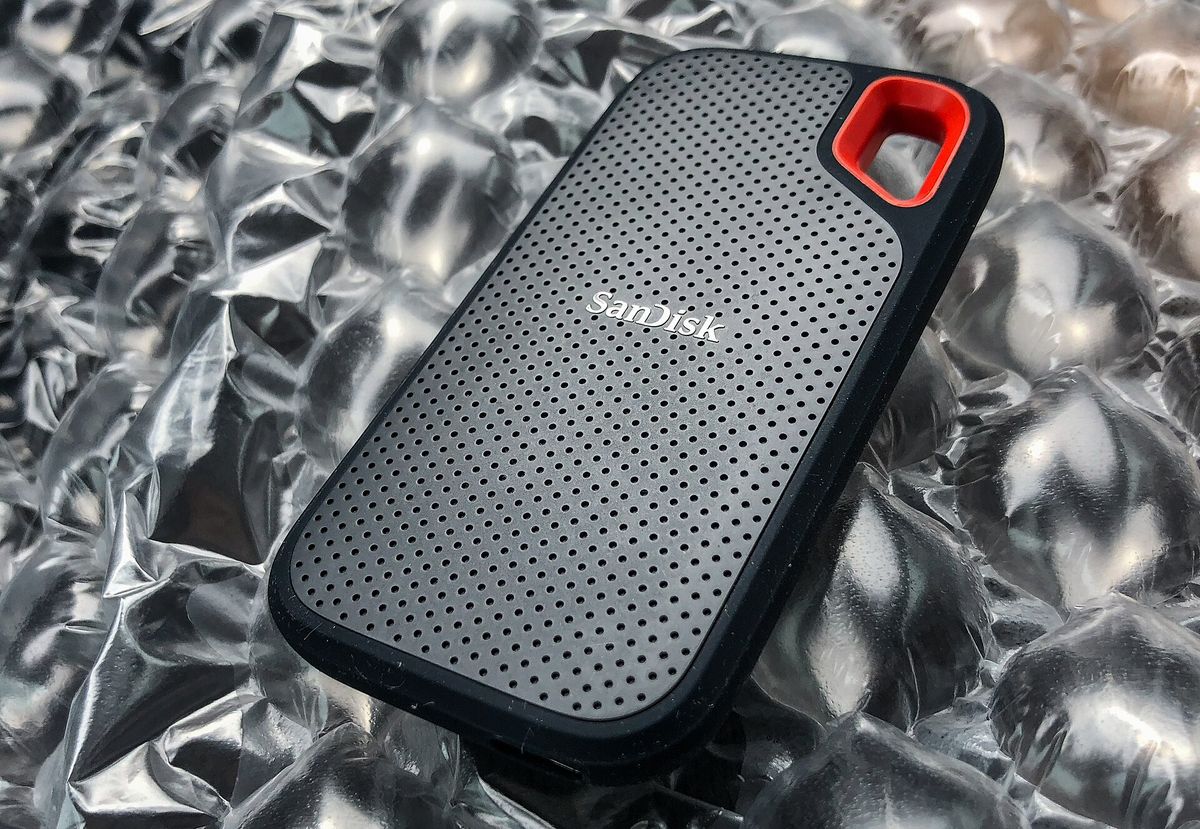
Add a local copy you control
A local copy lives on hardware you own and does not change when you tidy up your phone. It protects you if a cloud account is closed, a password is lost, or a sync quietly deletes something. Making one is a plain file copy: connect the phone, open its storage, and copy the photo folder across.
- Connect the phone with a cable and allow the computer to access its files if prompted.
- Find the photo folder on the phone (often named DCIM) and copy it to a dated folder on the computer or drive.
- For large libraries, copy in batches by year so nothing is missed.
- Once copied, eject the phone and drive safely before unplugging.
Verify the backup actually restores
A backup you have never tested is only a hope. People discover too late that a backup ran for months while saving the wrong folder, or that a cloud account was never really uploading. Check that you can get a photo back, not only that one went in. This takes a few minutes and is the most useful thing in this guide.
Confirm the cloud copy on another device
Sign in to your cloud photo account from a second device and open a recent photo. Seeing it there proves the upload worked, not only that the setting is on.
Open a file from the local copy
Go to the folder you copied and open a few photos. Make sure they display fully and are not empty or broken thumbnails.
Try a real restore
Download one photo from the cloud back to a device, or copy one from the drive to a new location. A copy you can open elsewhere is a copy that works.
Set a reminder to repeat
Add a calendar reminder every month or two to refresh the local copy and glance at the cloud account.
Do not rely on the phone alone
One device is one point of failure, and a phone is the most fragile link because it travels with you. Spreading copies across the cloud and a drive at home means no single accident can take everything. Switch on automatic cloud backup, keep a dated local copy of the photos you cannot replace, and test once that a photo really comes back.
Photo credits
- Photo: Rodion Kutsaev frostroomhead / Wikimedia Commons, CC0
- Photo: Tony Webster from Minneapolis, Minnesota, United States / Wikimedia Commons, CC BY 2.0
Written and edited by EasyGuides Editors. See our editorial standards.